


Free · Pro
Opening the app
Double-click index.html in Edge or Chrome. No installer, no server, and it works with the network unplugged.
Help
Gantora is a single HTML file, and this help page works the same way: one page, four languages, searchable. No sign-in, nothing to download.
Gantora is one file. What follows takes five minutes.
Double-click index.html in Edge or Chrome. No installer, no server, and it works with the network unplugged.
On first run the browser asks which folder holds your plans. You can grant the permission again later from the 📁 DB menu.
Pick a .gantora file from the dropdown, or create one with New file… in the DB menu. Free works with a single file.
The app asks your name on the first edit so changes are attributed. It can be skipped, and changed later in About.
The folder and the last file are remembered, so you do not pick them again — you only confirm the permission with one click.
Two bars at the top; everything below them is the plan.
The fixed top bar: DB menu, file picker, Save, undo and redo, New task, the view switcher, the Lists menu and the save-state dot.
One indicator instead of the old Loaded/Saved wording. It shows words only for unsaved changes, read-only, combined view or folder opened.
The second bar carries the current view's own controls — sort, filters, zoom, breadcrumb and the search box. A tab folds it away.
Below 820 pixels the layout stacks, filters start folded, and the view switcher becomes a bottom navigation bar.
Ctrl+S saves, Ctrl+Z and Ctrl+Y undo and redo, Ctrl+F searches, Enter commits and Esc discards an inline edit.
The same plan, read several ways. The chart is not a separately maintained picture.
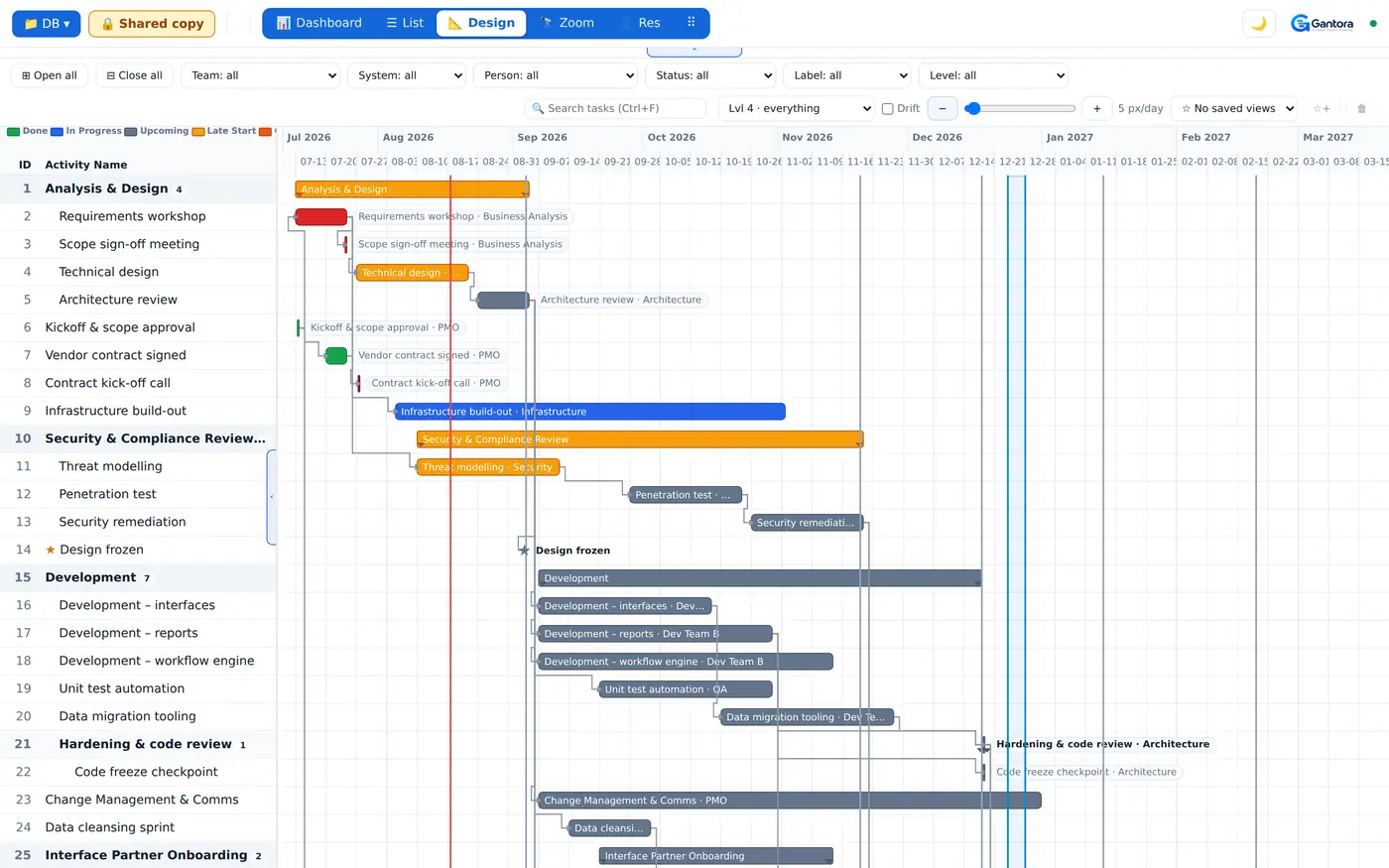
One screen on the plan's health: nine KPI cards, progress against the promise, trends, milestone health and team workload.
An Excel-like grid of every task. Predecessor IDs are clickable links, and columns can be hidden and rearranged.
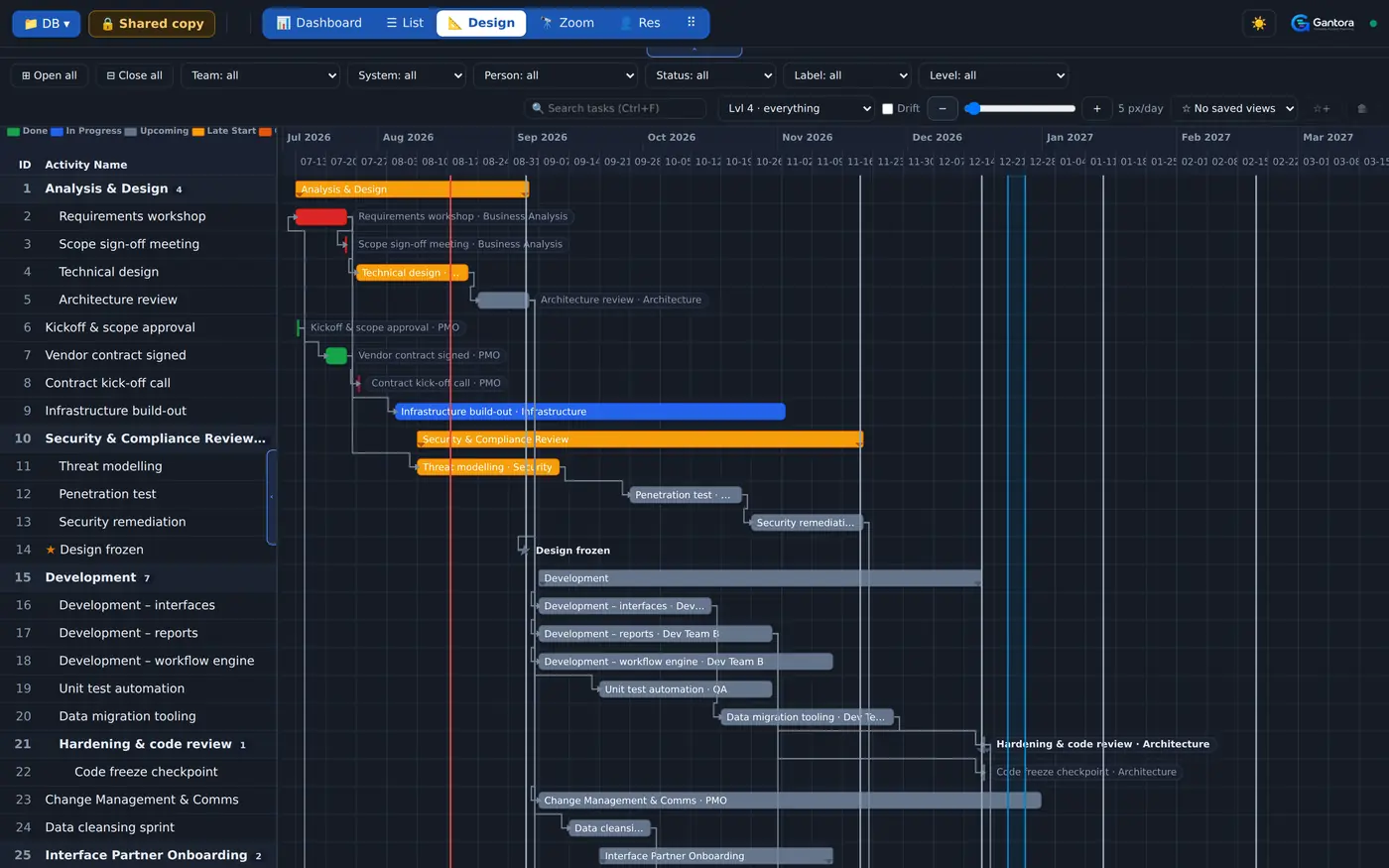
The zoomable timeline you edit the plan in: drag a bar to reschedule, drag its end to resize, drop it on a row to group it.
The same timeline at three scales: a helicopter view of the whole project, a day view, and an hour-resolved window.
One row per person, one column per day, hours booked in the cell. Overload is visible at a glance.
The "what am I on this week" board: this week, next week, later — scoped to a team or one person.
A management report on one page: what is blocked, what slipped, what runs this week and next — ready to hand over, copies into Excel by the column.
The cutover watched live: nothing can be edited while it is open, and the file is re-read as it changes on disk.
The plan as a picture: one band per main group, one lane per subgroup, and the work inside them — for projecting, not editing.
Zoom level, scale, filters and scroll position can be starred and saved, and they travel inside the plan file.
What you type is a row. What you drag is a date.
Double-click a list row to edit in place. Enter commits, Esc discards, Tab moves to the next field.
The pencil button opens the complete task editor: dates, people, status, notes, labels and the advanced settings.
Use the New task button or the row at the bottom of the list. A new row is placed by its dates, not appended.
In Design and Zoom you reschedule a task by grabbing its bar and change its length by dragging the end — no date needs typing.
Dragging a group's bar moves the whole group with its members; dragging a milestone's diamond sets the date it aims at.
Duplicate places a copy below the original with references remapped. Deleting a row also removes dependencies pointing at it.
Set start, end, team, system, owner or status across many selected rows at once. Fields left blank are untouched.
A milestone is a date the plan aims at; an event is a date the plan works around — a holiday, a freeze, a shutdown.
The last thirty changes can be undone, per file. Search covers name, ID, team, system, people and notes.
A plan is not a list but a structure. The dates follow from it.
Name the predecessor by its name, not its ID — the app looks the ID up and keeps it correct afterwards.
A group is a row that holds other rows. Its dates come from its members, and it nests up to four levels deep.
Drag a row onto another to put it in that group; drag it onto the ID column to take it out again.
The caret folds a group's members away. The folded state travels with the plan file, not with the browser.
Show only the rows at one depth of the plan, or strip the groups out and show tasks only.
While dragging a bar, a live tag shows how many dependent tasks would move and how far the project end would slip.
A date becomes a commitment when the work starts — not when you typed it.
Seven mutually exclusive states — done, blocked, on hold, overdue, in progress, upcoming, late start — colour every chart.
Every task carries a status and, beside it, a dated trail of when it changed and who changed it.
The baseline is not set by hand: it is the first end date ever recorded. Drift is the distance from it.
Compares the promised schedule with the reality computed from status history, and draws a projected trend line beside it.
Status and overdue trends for the last eight weeks, reconstructed from history rather than from stored snapshots.
Free-text tags on any row — risk, wave two, anything. They filter, and there is no list to maintain.
You send a plan out and get one back. This is about what happens next.
Every row gets a permanent hidden identifier. Merging matches on that, not on the visible ID, which changes with the dates.
Compare & merge in the DB menu gives four outcomes per row: same, differs, only here, only there.
The app suggests the more recently modified side, but never decides for you — there is no common ancestor to measure against.
Take all theirs, keep all mine, take the newer side row by row, add all or add none — with one click.
If the file changed since you opened it, the save stops, names who got there first, and offers the comparison.
Your plans are text files. You can open them without the app at any time.
Plain text separated by the pipe character, in the DB folder. Older .csv plans still open unchanged.
A task's number is its position in the plan sorted by date, not a permanent label. That is why everything references the UID underneath.
Every row carries its creation and modification time and the name of whoever changed it — which is what makes merging meaningful.
Lines at the end of the file starting with a hash store the column layout, the folded groups and the saved views.
Excel opens it with Data → From Text, and because it is text it diffs sensibly in version control.
Gantora never talks to a cloud service. The provider's own client does the syncing.
Put the DB folder inside a folder synced by Google Drive, OneDrive or Dropbox, and two machines work on the same plan.
A required step: Available offline in Drive, Always keep on this device in OneDrive, Smart Sync off for the folder in Dropbox.
The app checks that the file's size and timestamp have settled, and refuses to open one that is still arriving.
If the sync client creates a second copy of its own, compare & merge folds it back into the original.
The second place plans can live: a Dropbox folder — shared with others, if you like. Pro edition only.
DB → ☁️ Dropbox…: a button opens dropbox.com in a new tab, where you allow access and are shown a code; paste it back and press Connect. There is no redirect — a page opened by double-clicking has no address Dropbox could send you back to; the code is the way back.
Nothing is kept between sessions unless you ask (see Staying connected): next time you connect again. On a page opened by double-clicking every local HTML file shares one origin, so anything Gantora kept, another local file could read — which is why what is kept, when you ask, is encrypted and is noise without the password.
Optional, behind a password: once connected and on a folder, a password of your own (not your Dropbox password) and “Save the connection”. The connection and the folder are kept encrypted on this computer (PBKDF2-SHA256, AES-GCM); without the password they are noise. Next time, one password reconnects and opens the folder — no trip to dropbox.com. “Forget it” removes it; a forgotten password costs one more trip to dropbox.com, nothing else.
Once connected, the dialog lists the account's shared folders, or you type a path in your own Dropbox. If the folder is not called DB, the plans go in a DB folder inside it — made if it is not there. A shared folder is addressed by its namespace id, the same for every member: two people choosing the same folder are on the same plans.
Every save goes straight to Dropbox — the automatic ones gathered, two and a half seconds after the last change; the Save button and Ctrl+S at once. The dot stays amber until the write has landed and breathes while it is in the air. A shared folder's write limit (429) is waited out and retried.
Every write is a compare-and-swap on Dropbox's own version id: if somebody saved since you read, Dropbox itself refuses the write — nothing is written — and the same conflict dialog opens as on a synced local folder: merge, keep a copy, or overwrite. In the merge, keeping all of yours is a decision too: your version is written over theirs.
Dropbox mode is online mode: there is no local cache. When a request cannot reach Dropbox, a save says so once ("nothing was lost"), asks nothing, keeps the plan in memory with the dot amber, and tries again every fifteen seconds — or at once when the browser says the network is back: "Back online — saved".
With two places, the start asks: local DB folder or Dropbox — with a tick to remember. About → Default open: Ask each time, Dropbox, or Local DB folder. In local-folder mode Gantora still makes no network request of any kind.
The same single file, in two editions.
Dashboard, List, Design and Zoom over one project file, read-only mode, Excel in and out, and shareable pages.
Everything in Free, plus the Resource, Team, Report, Cockpit and Presentation views, any number of files, combined view and merging.
Pro works fully without one. A licence names who the copy belongs to, and that name appears on what the copy produces.
A short signed text pasted into the About window. It is verified locally; there is no network call and nothing is sent anywhere.
For machines where policy blocks the folder prompt: plans are opened and saved one at a time, and nothing else changes.
The four questions that come up most, and the short answer to each.
The browser starts permission from zero on every page load. You do not re-pick the folder, you only confirm it with one click.
On open the app repairs duplicate IDs, dangling dependencies and broken group nesting, and reports what it repaired.
Desktop Microsoft Edge or Google Chrome. These are the browsers that support the folder access the app needs.
Anything that is not a Gantora plan is never adopted as one. If you want it in, the way in is Excel import.
No matches. Try another word — the search looks in titles and descriptions.
Did not find what you were looking for? The full description is in the README inside the download, and in the app's About window.
Release history
The dates are the release archives' own timestamps — not a history written afterwards.
Before 1.0, Gantora spent three weeks as an internal utility across twenty releases. That stretch is not product history — it is how this product found itself.